Starting with MOXIS version 4.53, it is possible to leave comments for external signers in MOXIS Guest. Comments entered by clients in an iteration level will now be displayed to external signers as pop-ups in MOXIS Guest. These instructions show you how to add a comment to a job for external signers and how it will subsequently be displayed to the signer.
1. Instructions: Writing comments for external signers
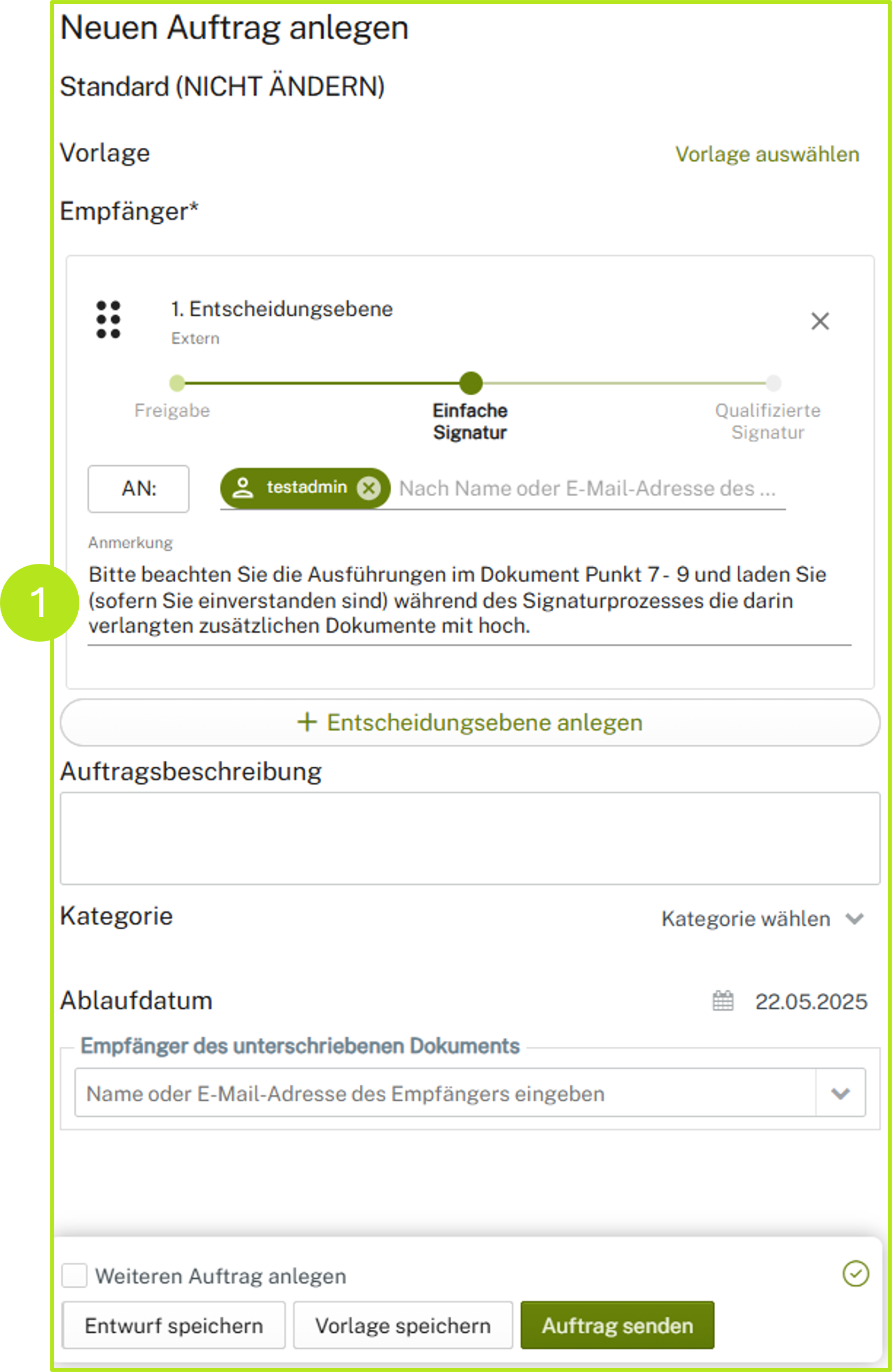
Create a new job for external signers as usual. Under Recipients, you have the option to leave a comment (see figure 1 [1]).
XiTip
This feature is optional and must therefore be configured by your administrator. Comments in external jobs are also an excellent addition to another feature of MOXIS Guest introduced in version 4.53: the uploading of attachments by external signers.
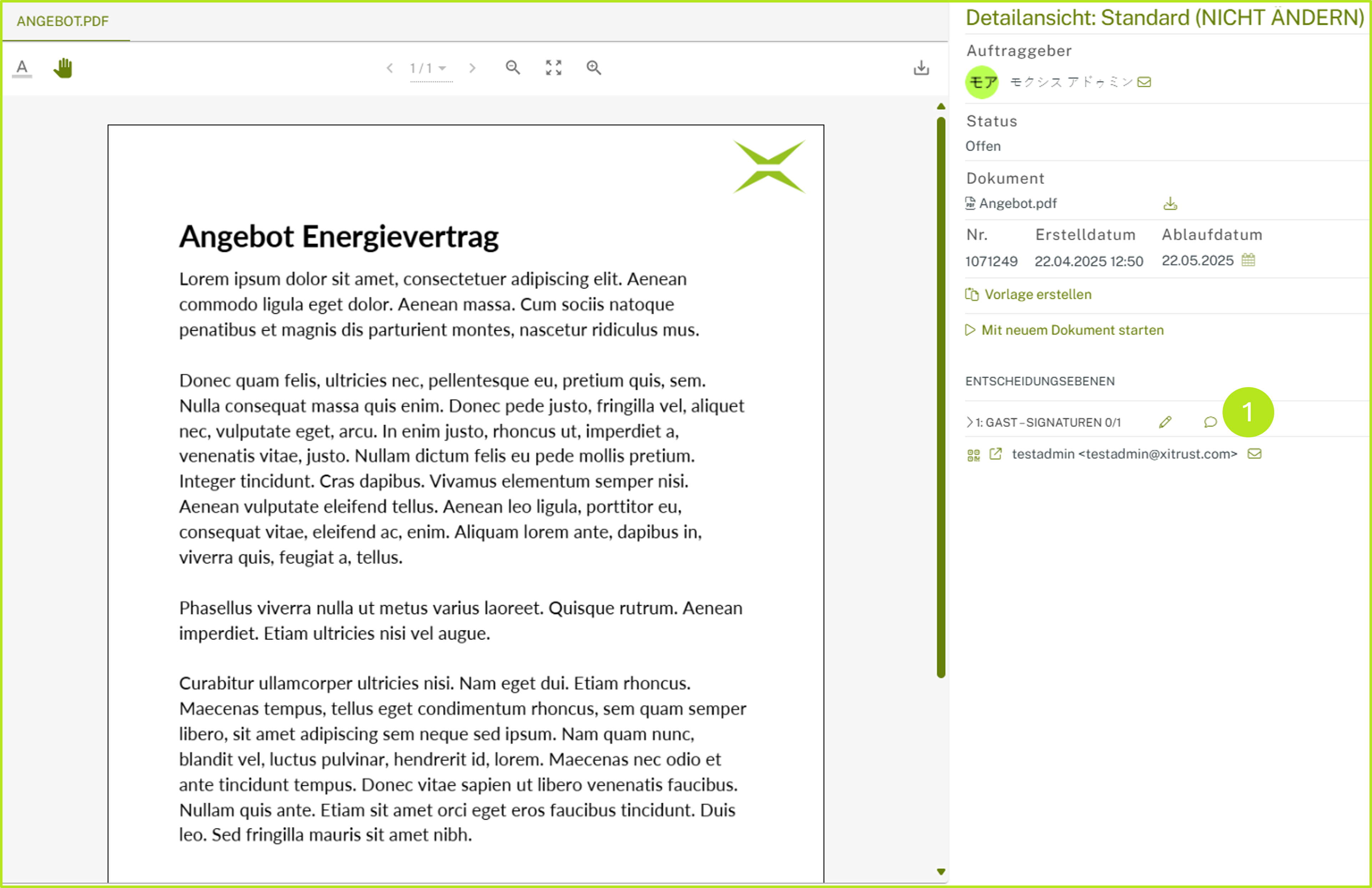
In the detailed view (job overview) and in the detailed view of the job (see figures 2 [1] and 3 [1]), you can see a job in MOXIS Guest for external signers to which a comment has been added, indicated by the speech bubble.

XiTip
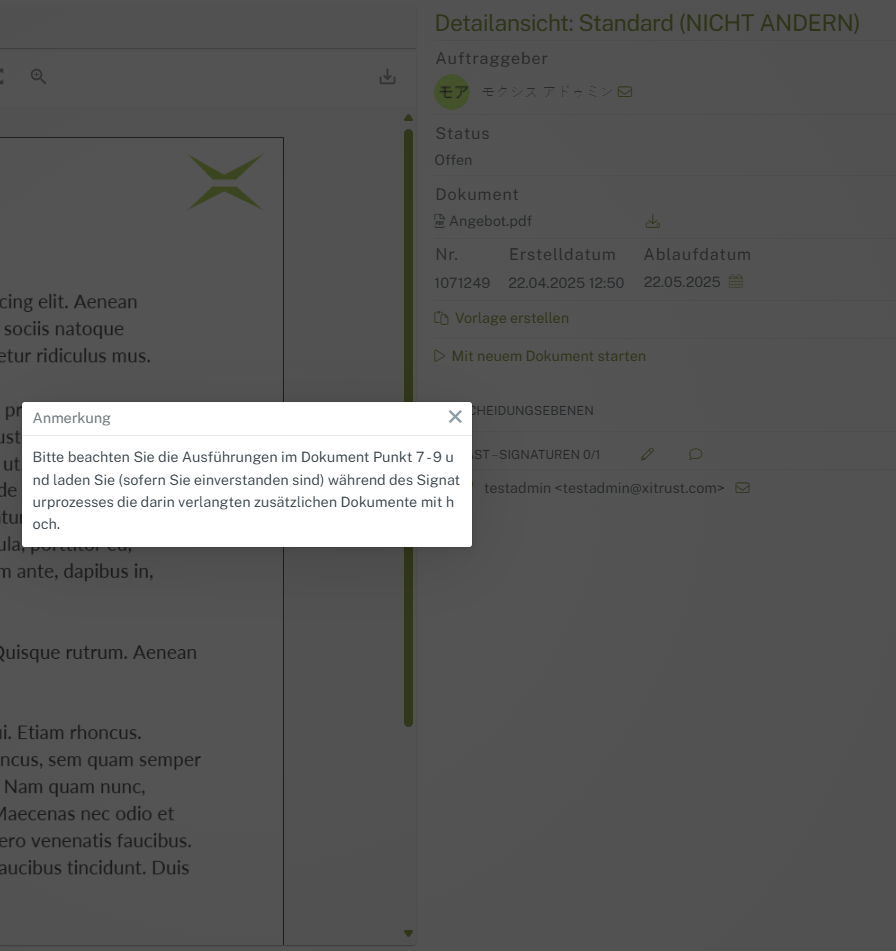
If you click on the speech bubble in the detailed view, the comment will be displayed again (see figure 4).
2. Comments from the perspective of external signers
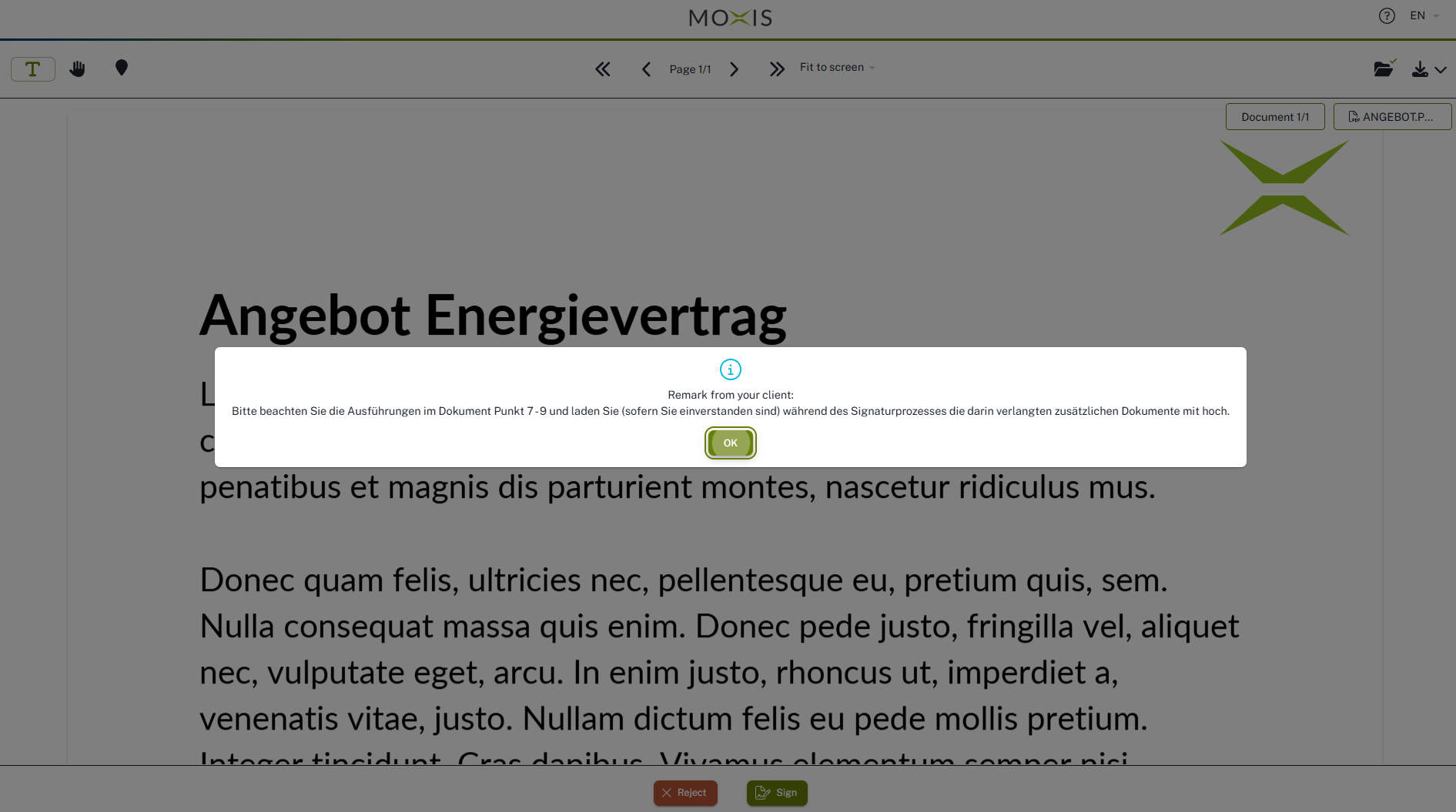
External sgner see the comment right after opening the job (see figure 5). To sign the job, they need to click the [OK]-button.