Contents
MOXIS offers you the option of individually configuring process-dependent and regular email notifications in the user settings. This article provides you with the basics.
1. Configuring notifications in MOXIS 4.52
In principle, you have two options for configuring notifications:
-
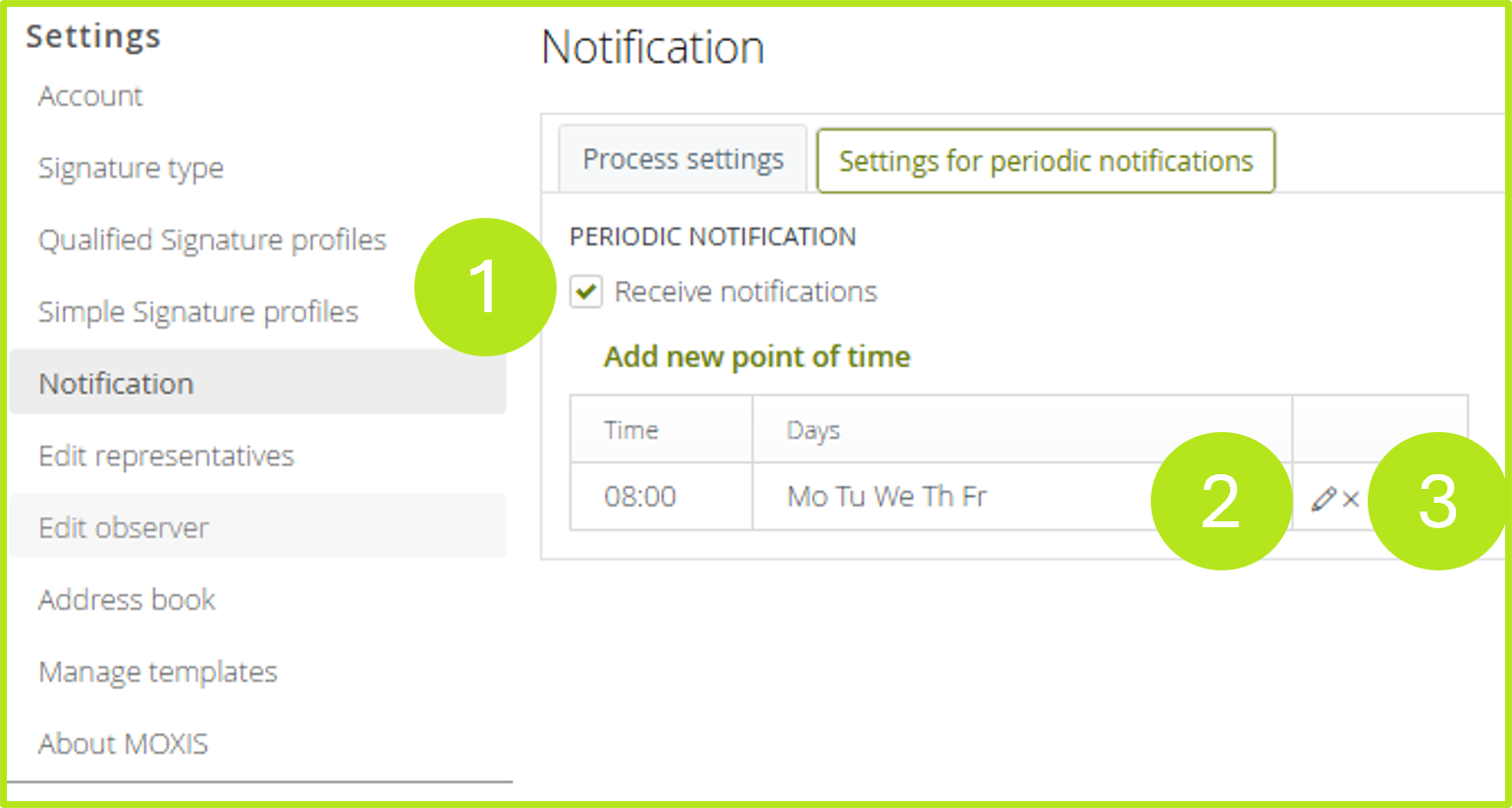
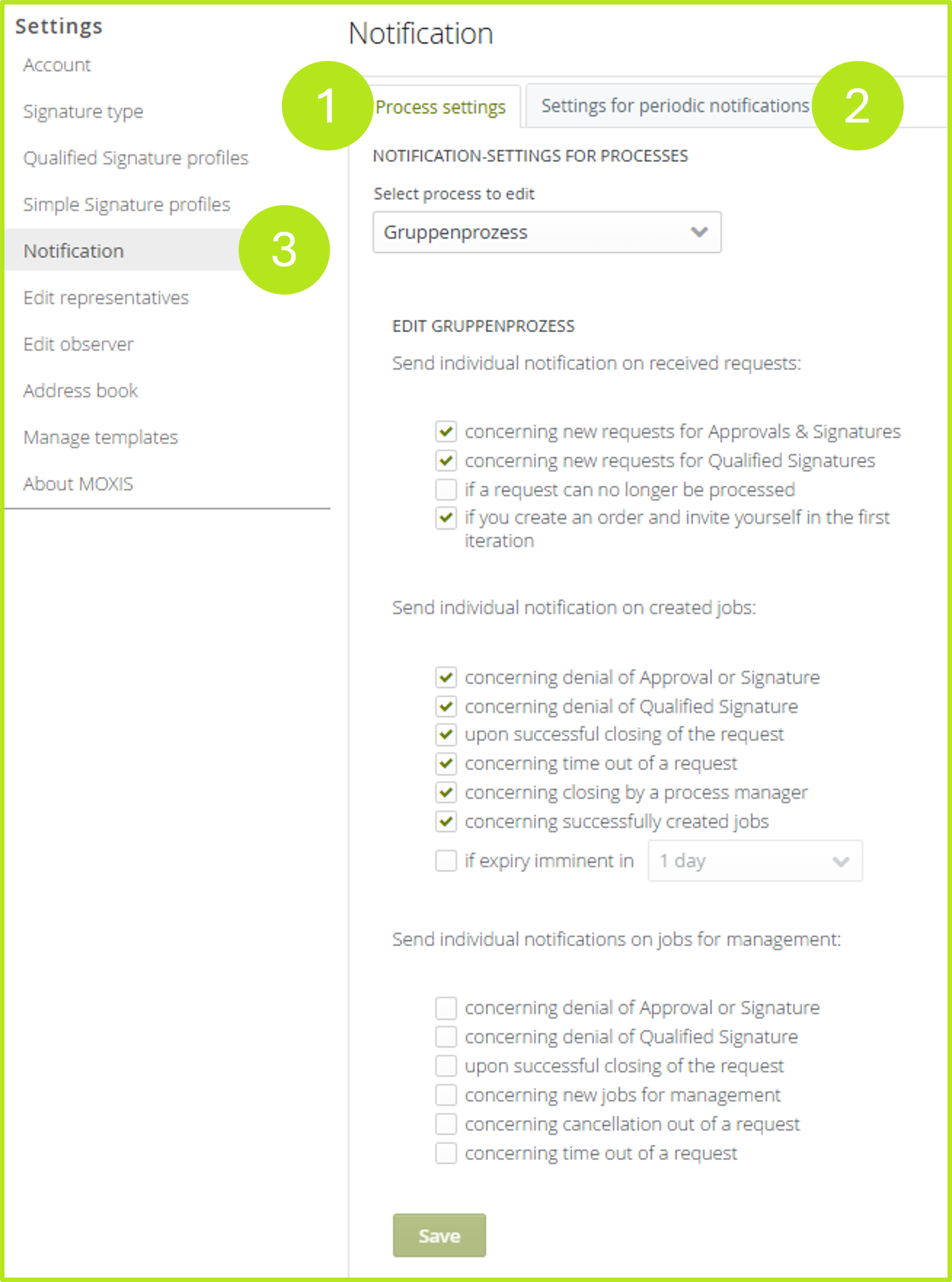
process settings (see figure 1 [1])
-
settings for periodic notifications (see figure 1 [2])
You can access both options via the MOXIS settings > notifications (see figure 1 [3]).
1.1. Configuring process-dependent notifications
If you are authorised to use multiple processes, you must first select the process for which you want to define the settings (see figure 2). Please note: The settings must be configured and saved individually for each process.
Figure 2: Select the process for editing in the process settings.
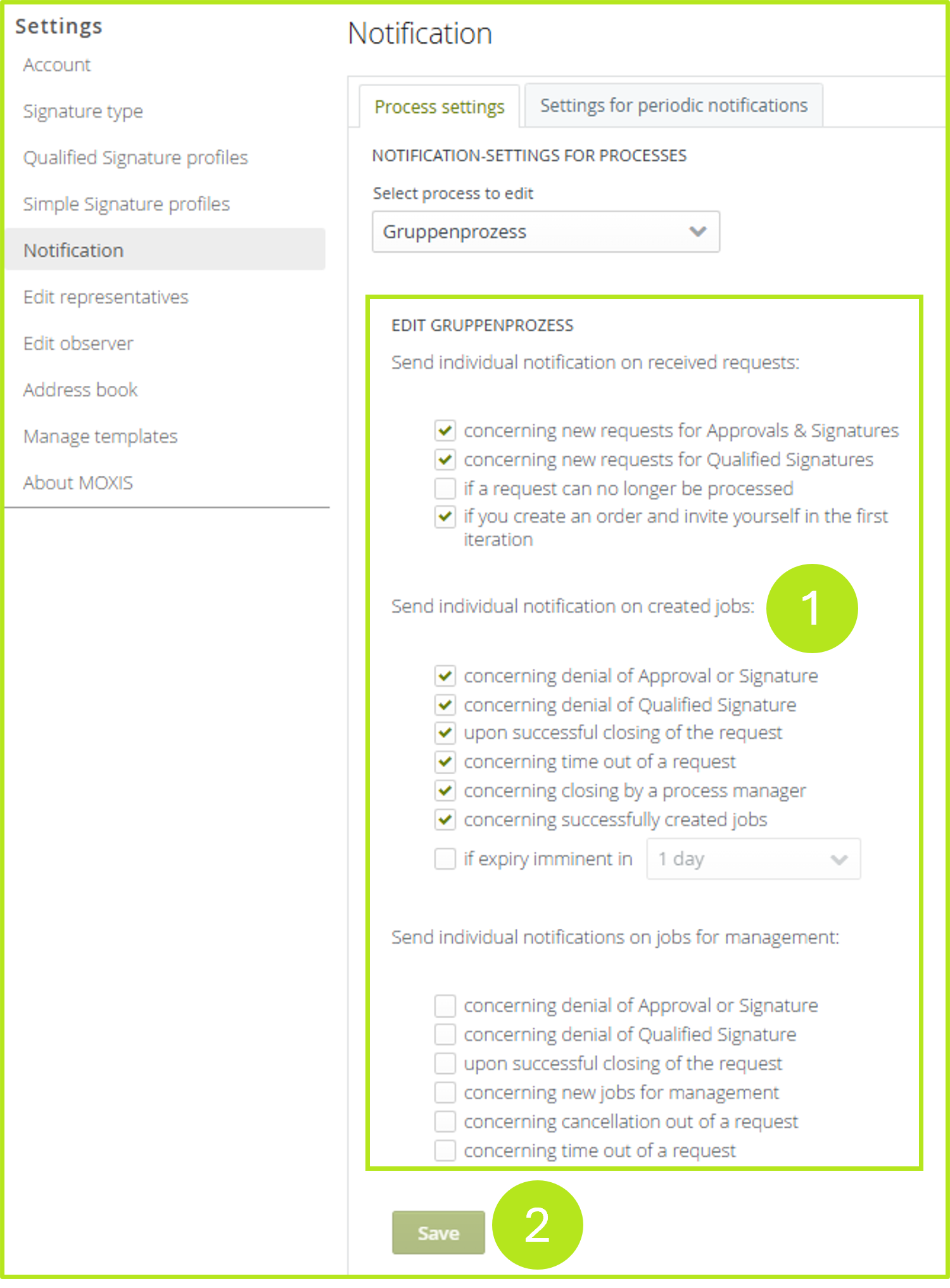
For process-dependent notifications, e-mail notifications can be activated or deactivated for each process and process step by setting or removing the tick (see figure 3 [1]). Click the [Save]-button (see figure 3 [2]) to save the settings.
1.2. Configuring periodic notifications
Any number of notification periods can be stored for periodic notifications. This means that you receive a notification for all received orders (so-called collective notifications; see figure 4).
To receive notifications, please tick the checkbox (see figure 1 [1]). To edit them, click on the pencil icon (see figure 4 [2]) in the line of the corresponding entry or click on the x-icon to delete the entry (see figure 4 [3]) .