
Content
Thanks to the representative function, you can appoint deputies for both the qualified signature and the release for selected periods. Learn how to manage them in this article.
1. Substitute function in MOXIS 4.52
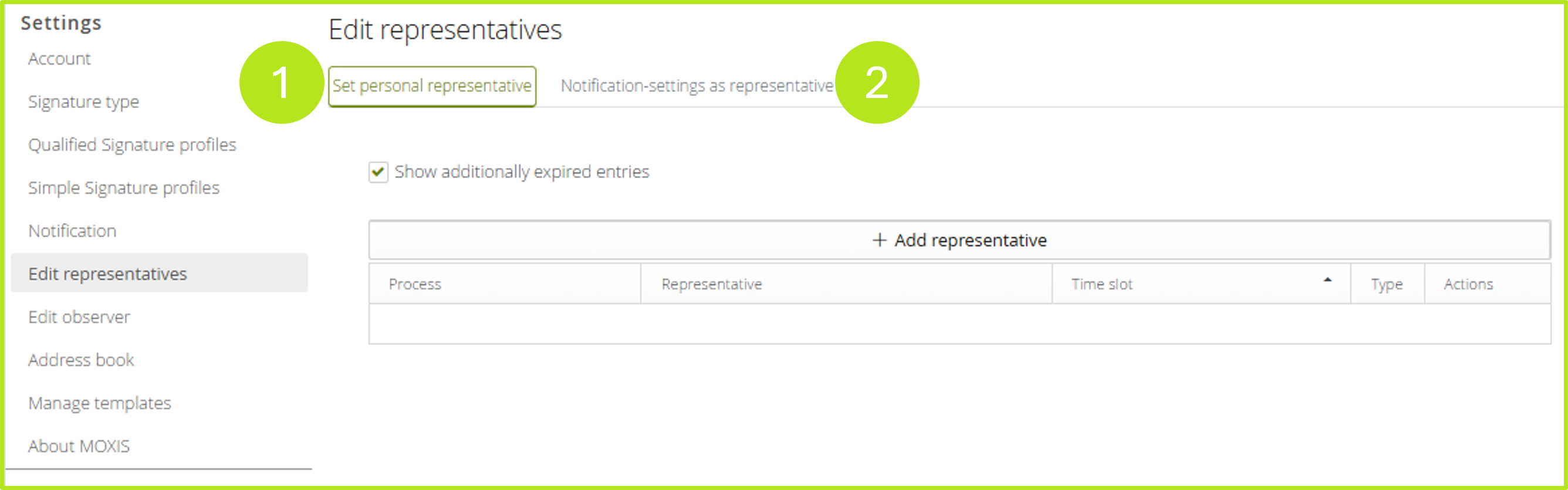
To configure the substitute function, please open it under Settings > Edit substitute function. You have two options for using the function (see figure 1):
-
Set a personal representative (see figure 1 [1]) or
-
Configure your notifications in your role as a representative (see figure 1 [2])
1.1. Defining personal representation
To define a personal representation, click on the [+Add representative]-button (see figure 2 [1]). You can define as many substitutes as you like, but no persons will be accepted who have already defined a representation for the same period.

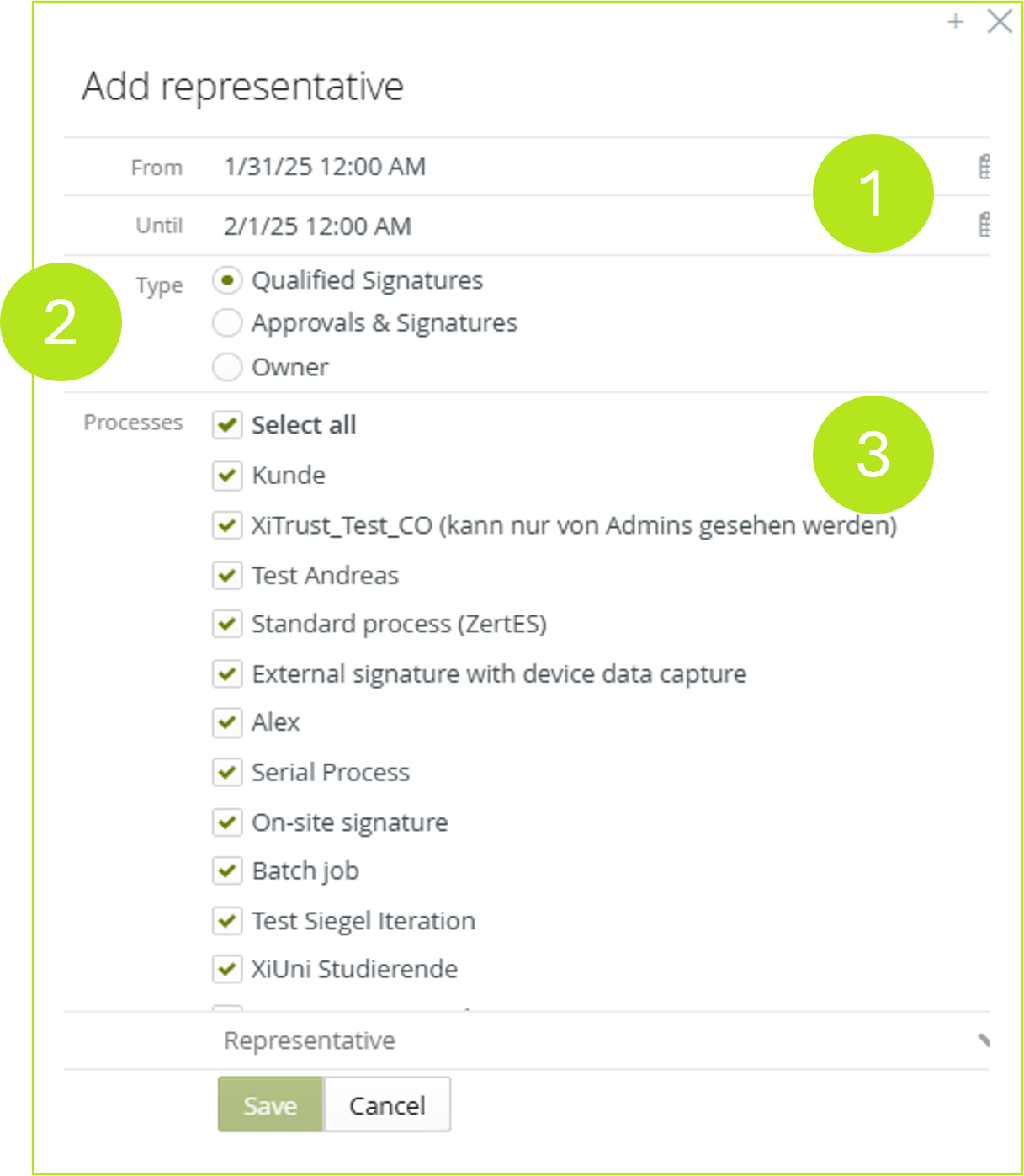
The period of representation (see figure 3 [1]) and various types (qualified signature, releases and signatures or constitutes; see figure 3 [2]) can be activated for the representatives. In addition, one or more processes can be selected that the representatives are allowed to use (see figure 3 [3]).
XiTipp
Depending on the signature type selected, different rights are available. For example, when the ‘Qualified Signatures’ option is selected, representatives can only represent orders with qualified signatures and sign or reject them. The Approvals & Signatures type is free to sign or reject all orders.
Please note: If the client is selected as the type, the representative has all the rights that the client has:
-
Cancel and delete orders
-
Change expiry date
-
Edit orders retrospectively
-
Change recipients at decision levels
1.2. View registered representation
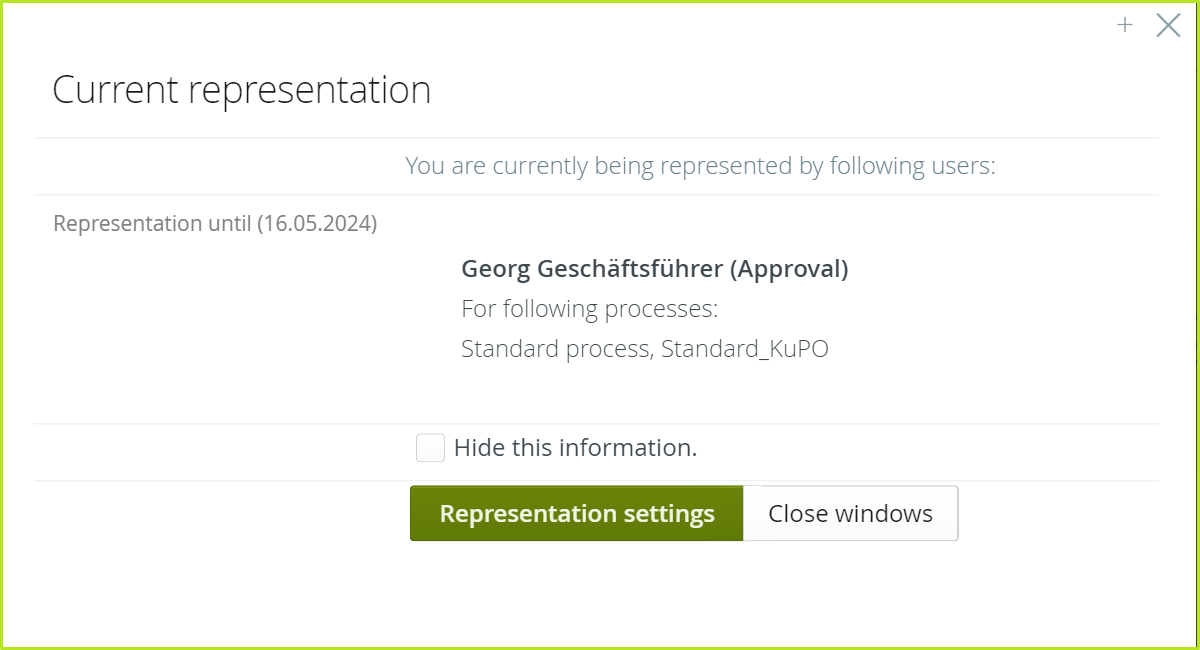
If a representation has been registered for you, you will be informed of this by a pop-up when you log in (see figure 4). You can configure the substitution by clicking on the [Representation settings]-button.
1.3. Personal representation from the representative's point of view
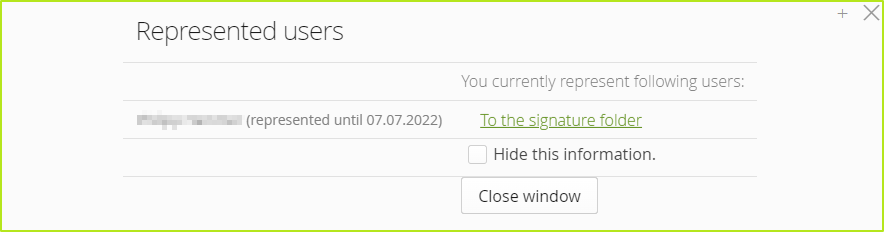
If you have been appointed as a representative, you will be notified by email. In addition, you will be alerted by a pop-up the next time you log in (see Figure 5).
MOXIS users who have been named as representatives themselves have the option to activate or deactivate notifications of incoming substitution requests (see Figure 1).
The corresponding folders are available in the side menu of the job menu under To Represent.