Content
The following step-by-step instructions show you how to save documents as PDF/A files. This is possible with both Microsoft Office Word and Libre Office/Open Office.
Step-by-step guide: Microsoft Office – Word (Windows)
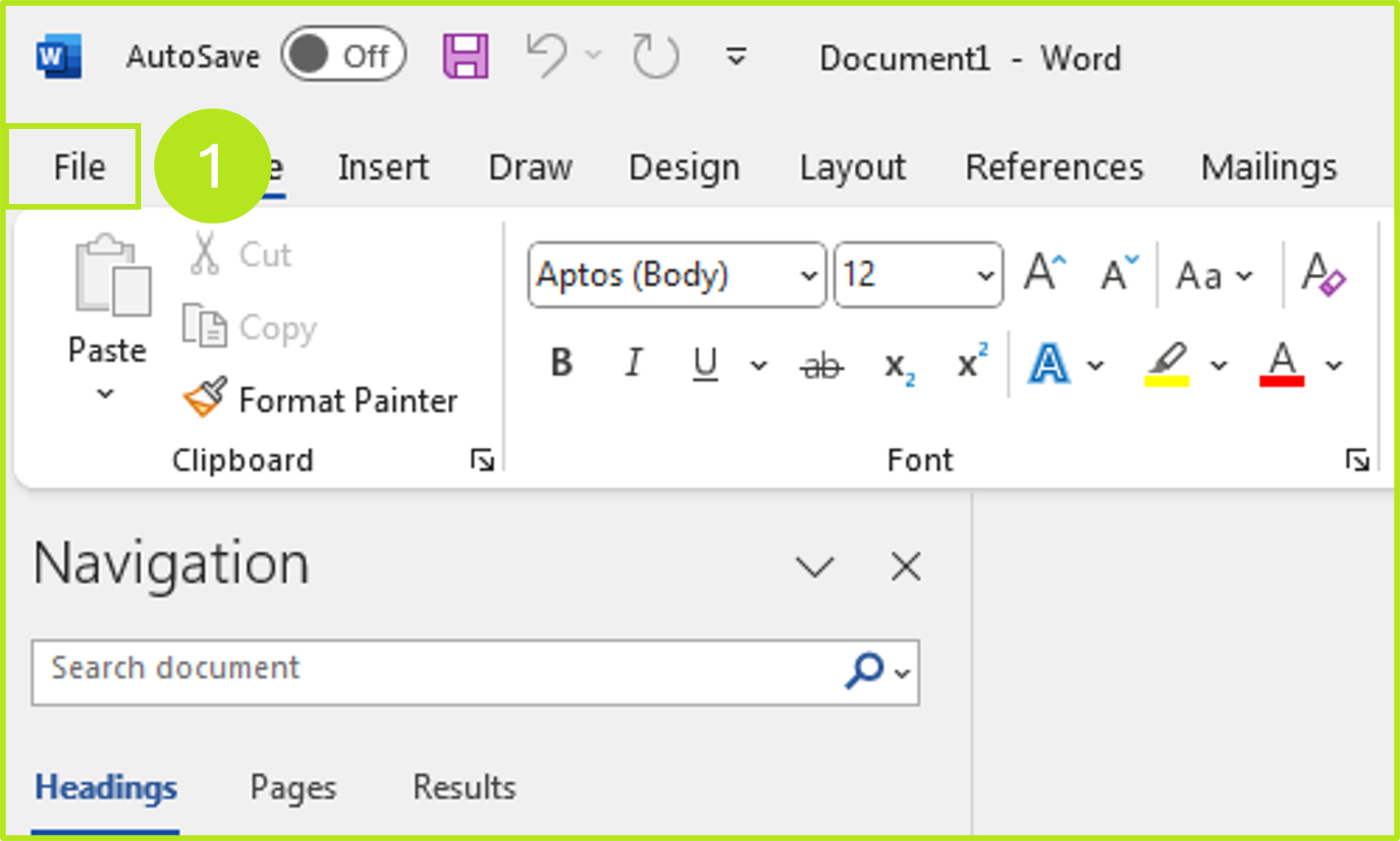
Step 1: Click on the File menu-item on the top left of your Word-document (see figure 1 [1]).
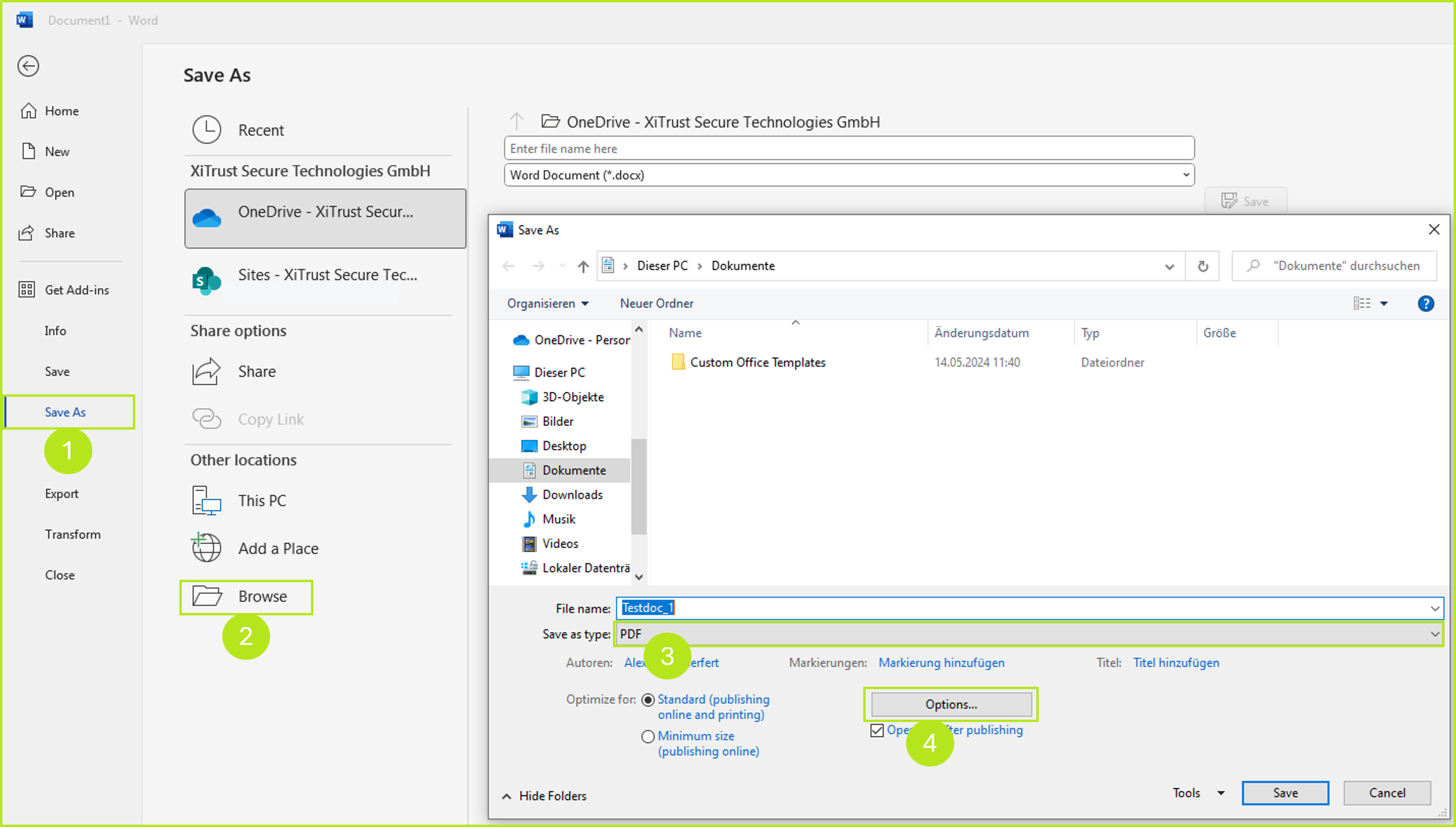
Step 2: Now click on Save as (see figure 2 [1]) and then on Browse (see figure 2 [2]). Then select PDF in the file type menu (see Figure 2 [3]) and then click on the [Options]-button (see Figure 2 [4]).
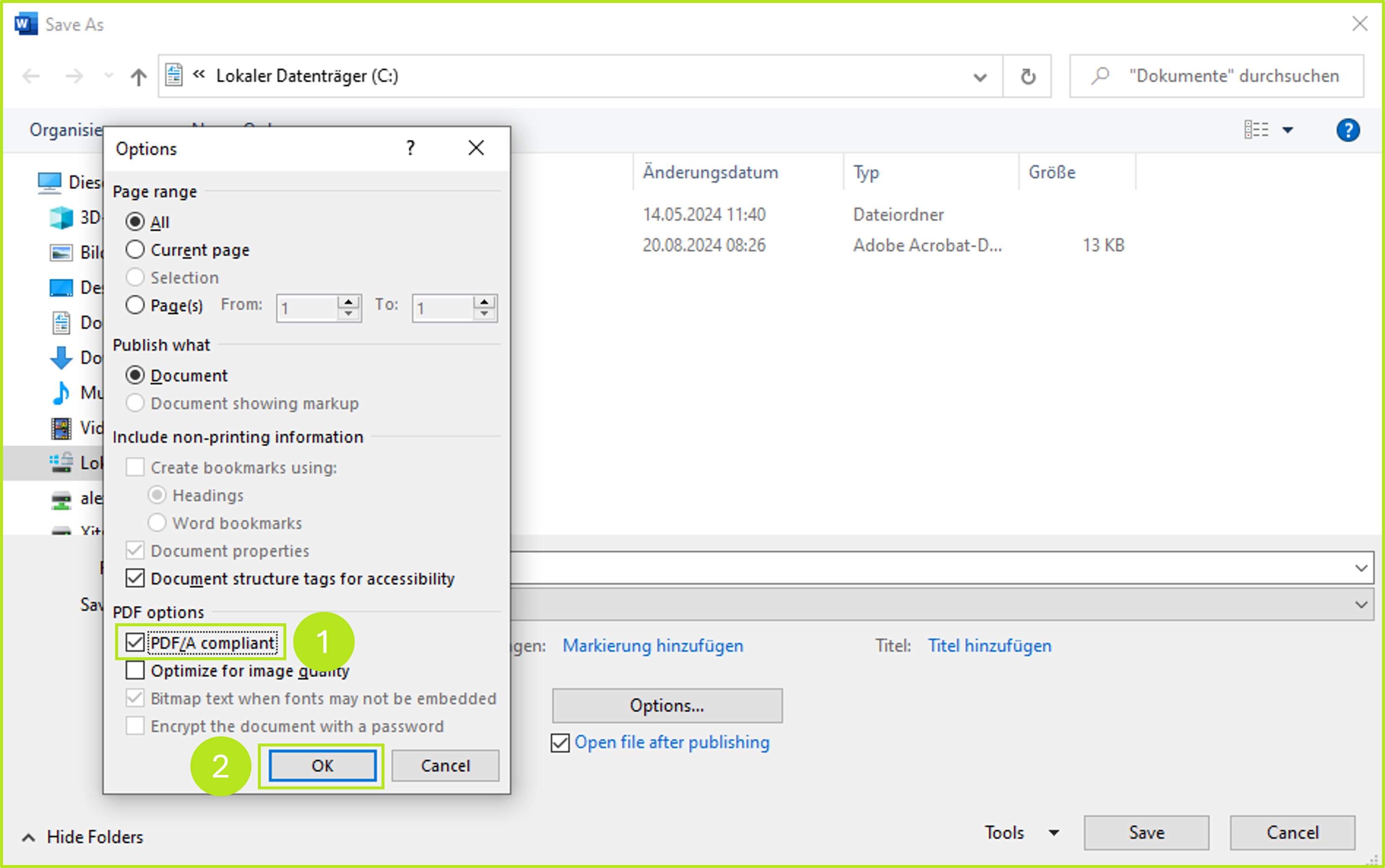
Step 3: Activate the PDF/A-compliant-checkbox in the PDF options (see figure 3 [1]) and confirm your selection by clicking on the [OK]-button (see figure 3 [2]).
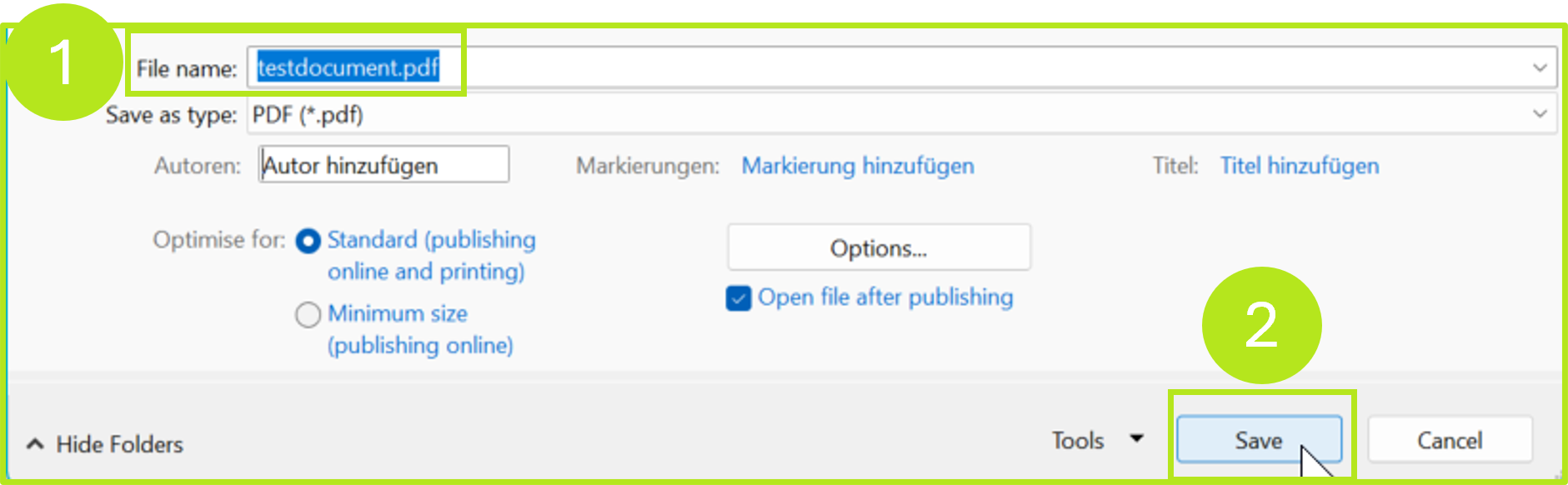
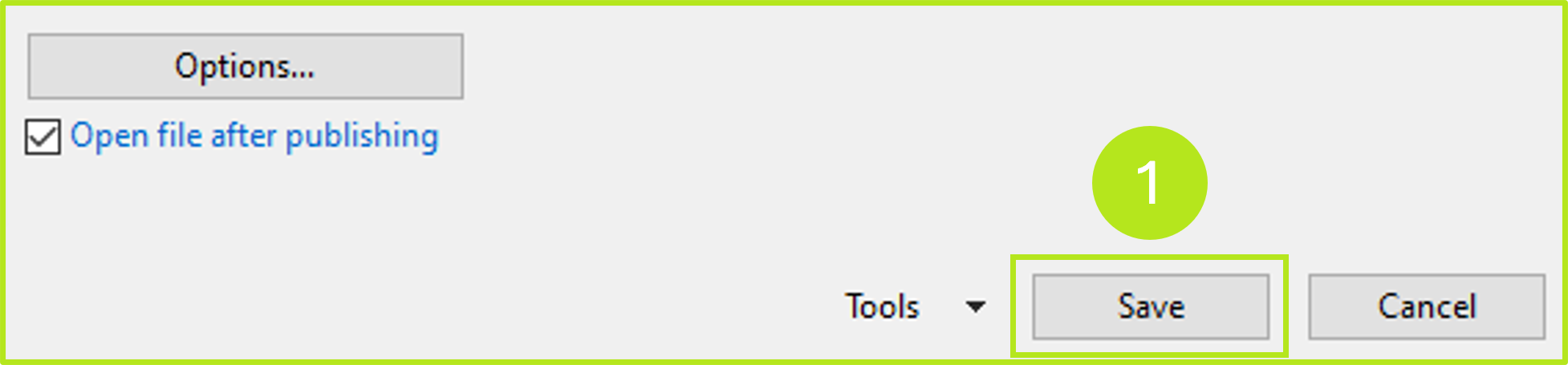
Step 4: Now click on the [Save]-button (see figure 4 [1]) to complete the process. Please note: You can also change the storage location and file name of the PDF document if necessary.
Step 2: How to do it step by step in Microsoft Libre Office (Windows)
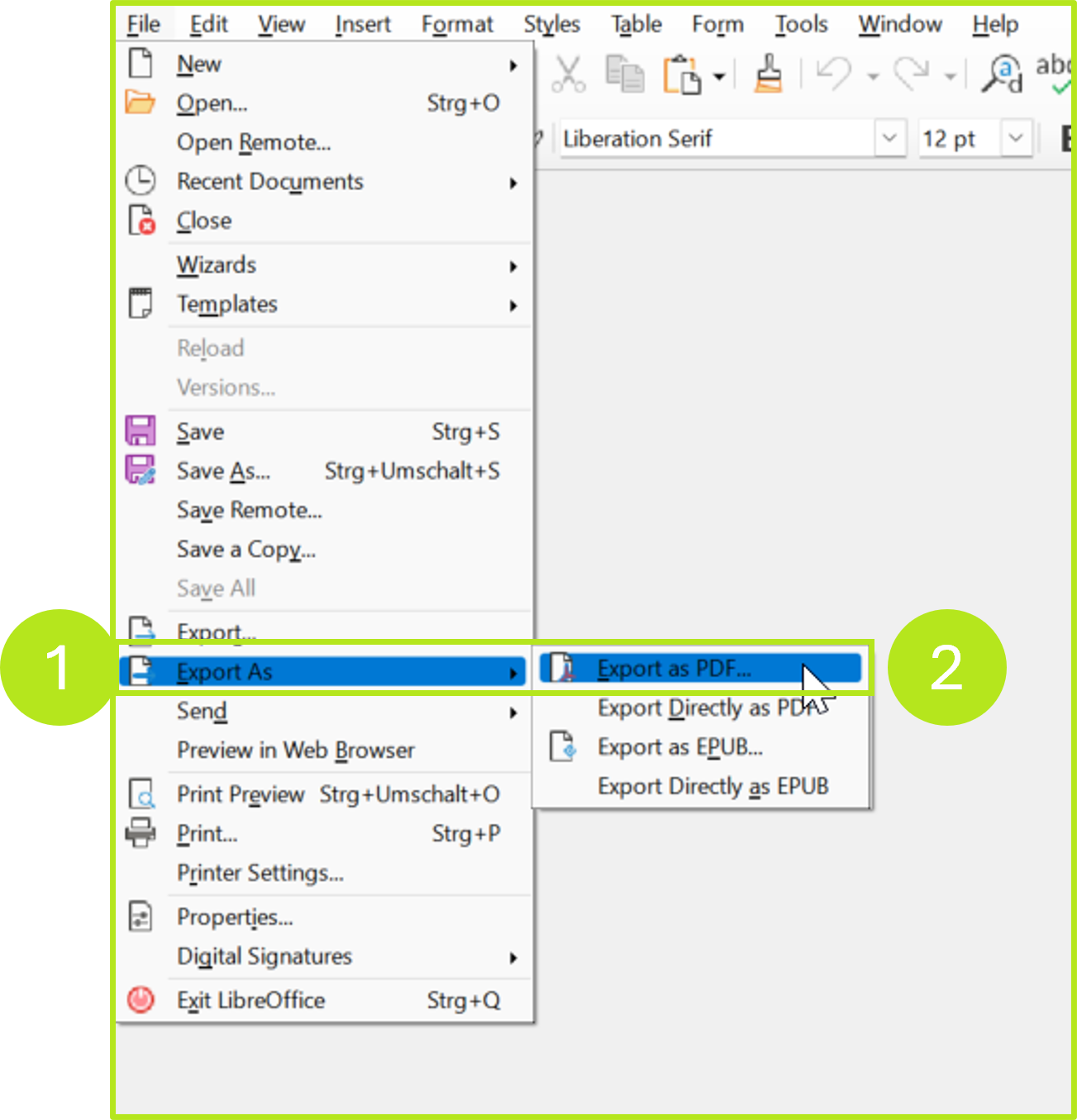
Step 1: Open the document you want to convert into a PDF/A-compliant PDF. Go to File on the main menu and select Export as… (see figure 5 [1]) and Export as PDF … (see figure 5 [2])
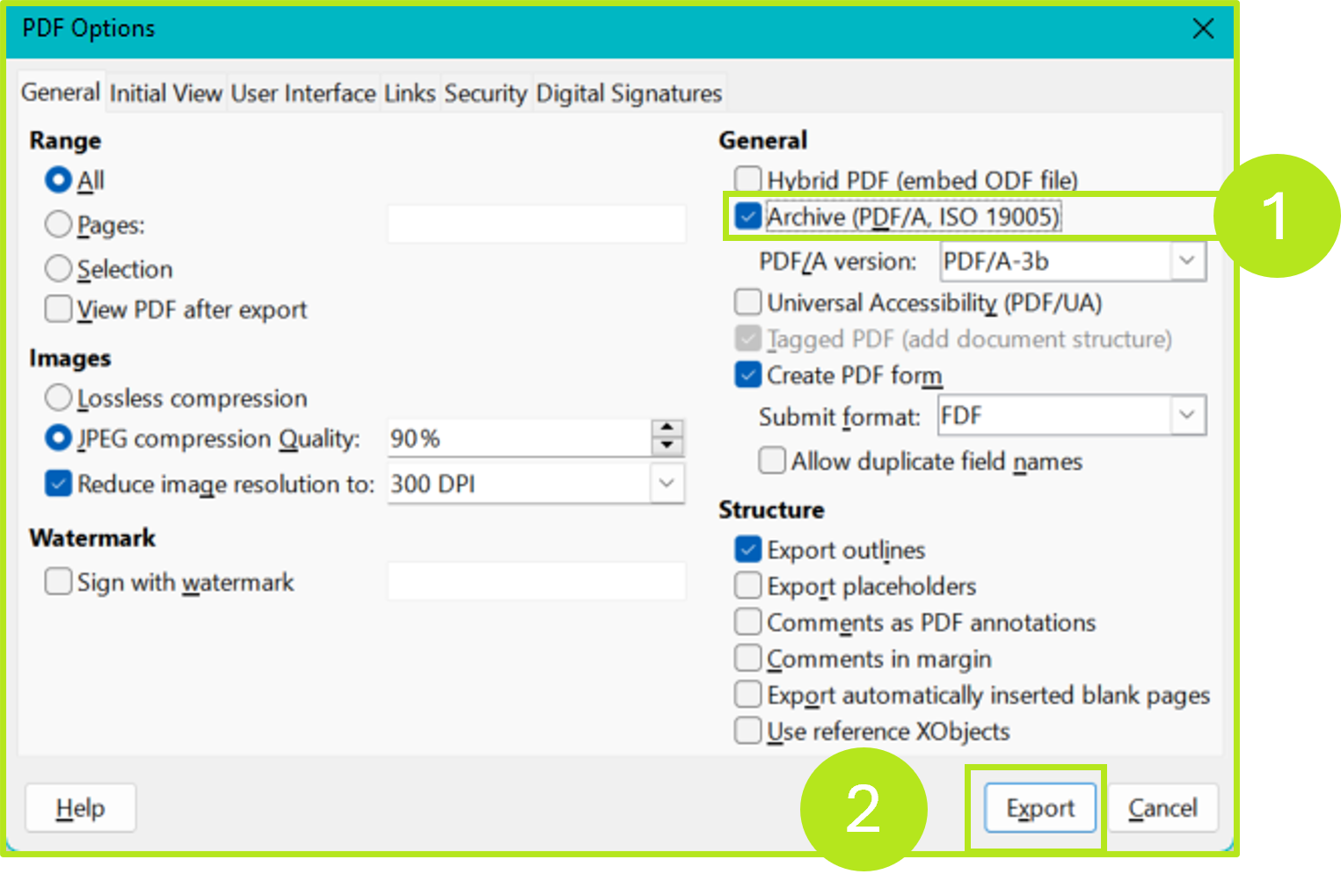
Step 2: Now activate the option PDF/A-1a (ISO 19005-1) Archive in the General tab in the right-hand column (see figure 6 [1]) and then click the [Export]-button (see figure 6 [2]).
Step 3: Select a storage location and file name (see figure 7 [1]) for the PDF document and then click on the [Save]-button (see figure 7 [2]).